

WeMap Simple Usage Tutorial
This guide uses a practical example to briefly explain how to use WeMap to extract data files for Wireless Insite modeling. Please note that WeMap's capabilities extend far beyond those mentioned in this single case; users can find more tutorials on the official website.
1. Activate WeMap and enter the software user interface. Locate the area you need. The image shows a part of Chongqing Municipality, Sichuan Province, China.

2. In the menu, select "Start", then choose the "Screen Extent" function from the next row of buttons. This sets the currently displayed screen area as the range for searching and downloading data.

3. In the pop-up "New Task" window, select "Elevation" to open the terrain map search interface.
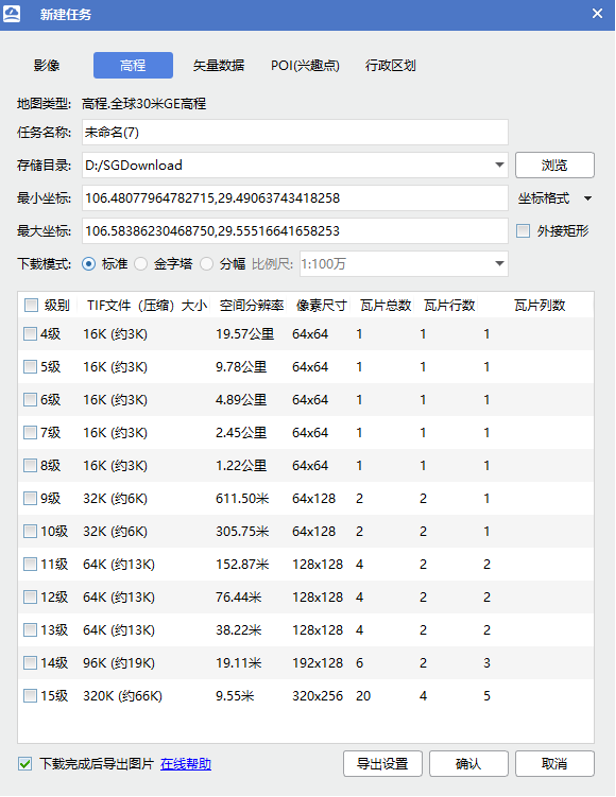
4. Enter a Task Name. For easier reading by Wireless Insite, please use English.
5. Set the Data File Save Directory. WeMap will create a folder with the same name as your task name in this directory and save the terrain files inside it.
6. Select the Map Precision Level. Higher levels offer higher resolution but result in larger GIS files. Here, we select Level 15.
7. Click the "Export Settings" button at the bottom of the window to enter the Export Settings window.
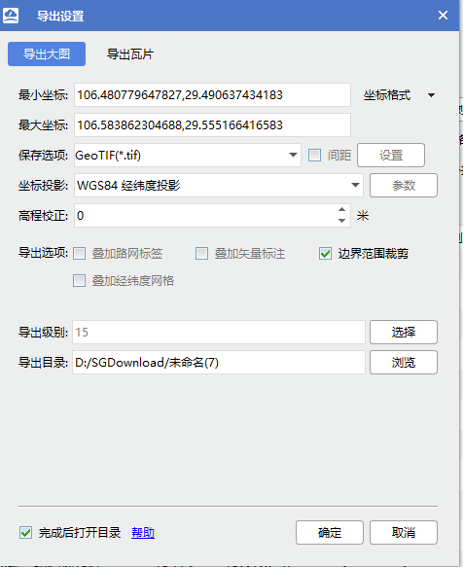
8. Under Save Options, select "GeoTIFF", then press "OK".
9. Return to the "New Task" window and press "OK" to begin downloading the 3D terrain map.
10. After the download is complete, you can import the terrain map into Wireless Insite.
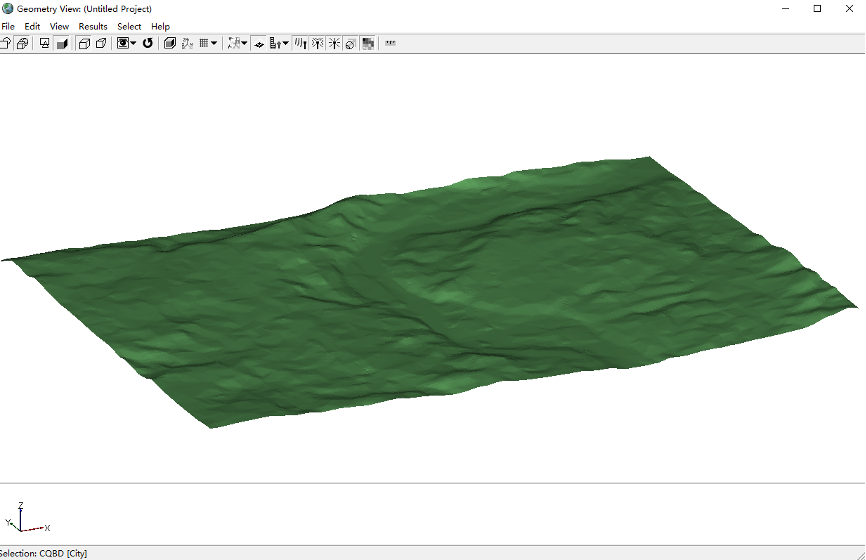
11. Enter the "New Task" window again, select "Vector Data", and this time choose "Export Building Outlines".
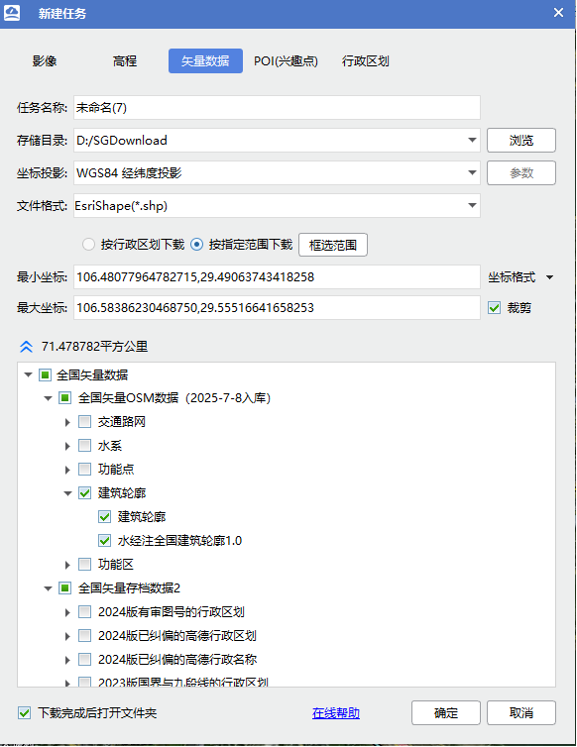
12. Enter a Task Name. For easier reading by Wireless Insite, please use English.
13. Set the Data File Save Directory. WeMap will create a folder with the same name as your task name in this directory and save the files inside it.
14. Select the Coordinate Projection method. Here, we choose "WGS84".
15. Select the Export File Format. Here, we choose "Esri Shape (*.shp)".
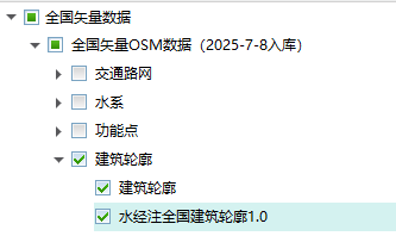
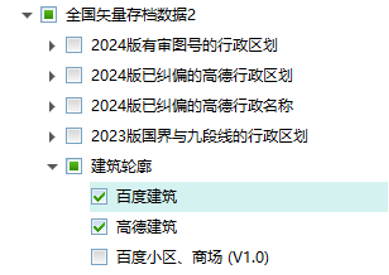
16. In the Database area of the user interface, check the following databases (Shuijingzhu National Building Outline 1.0, Baidu Buildings, Gaode Buildings).
17. After configuration, press "OK" to begin downloading the building models.
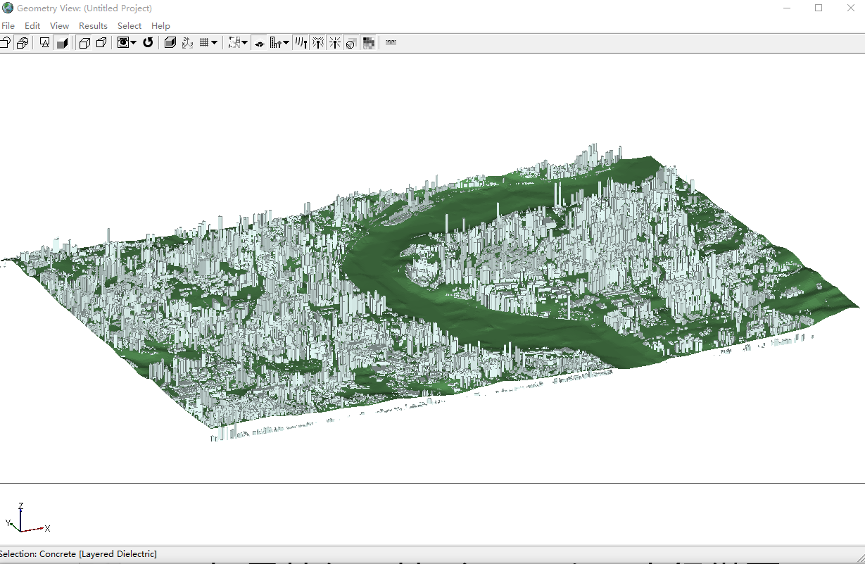
18. Select one set of building outlines to import into Wireless Insite and combine it with the terrain map to form a city model (This example uses Baidu Buildings).
19. Enter the "New Task" window again, select "Vector Data", this time choose "Water System", and check "Rivers" to prepare for exporting river data.
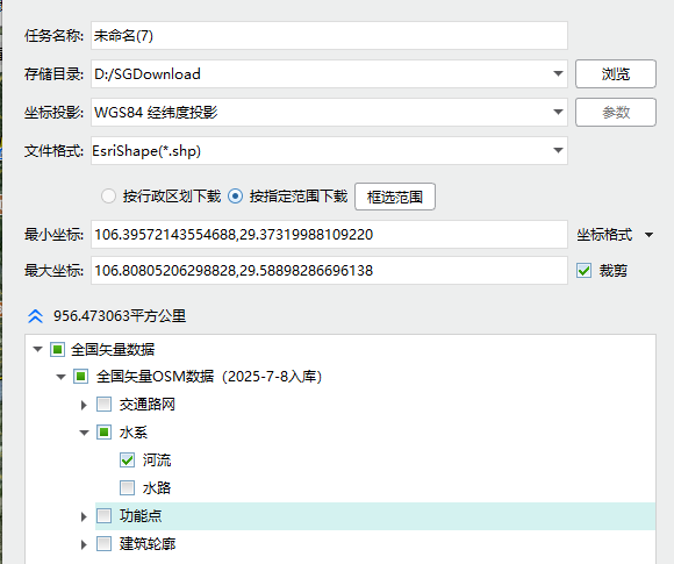
20. Enter a Task Name. For easier reading by Wireless Insite, please use English.
21. Set the Data File Save Directory. WeMap will create a folder with the same name as your task name in this directory and save the files inside it.
22. Select the Coordinate Projection method. Here, we choose "WGS84".
23. Select the Export File Format. Here, we choose "Esri Shape (*.shp)".
24. Import the river shapefile into Wireless Insite. Make adjustments as needed within Wireless Insite to complete the Chongqing market scene model.
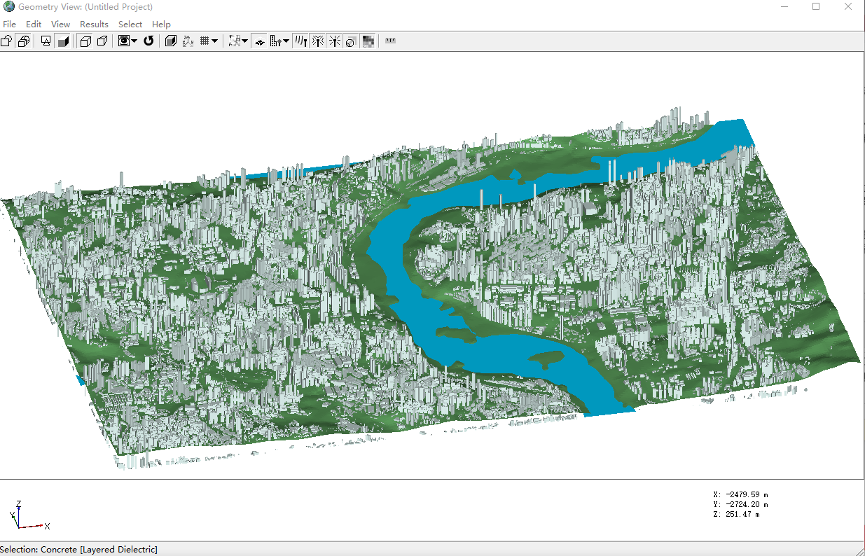
水經微圖WeMap can also download terrain and building outline data for many other regions in China, providing resources for various user projects.
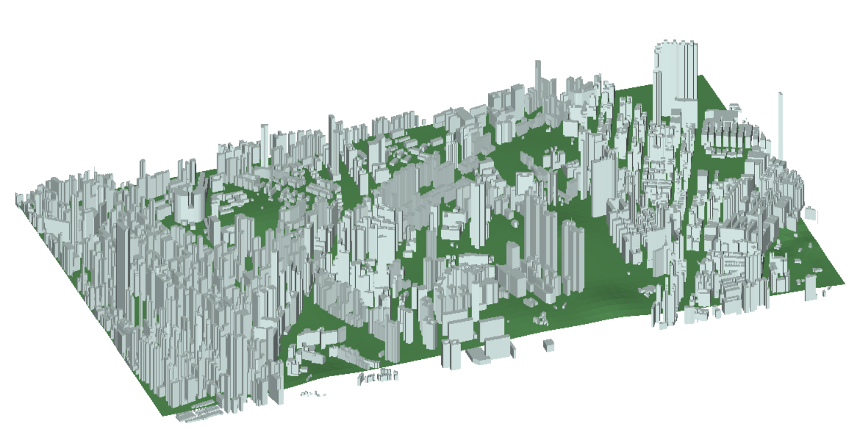
Kowloon District, Hong Kong, China
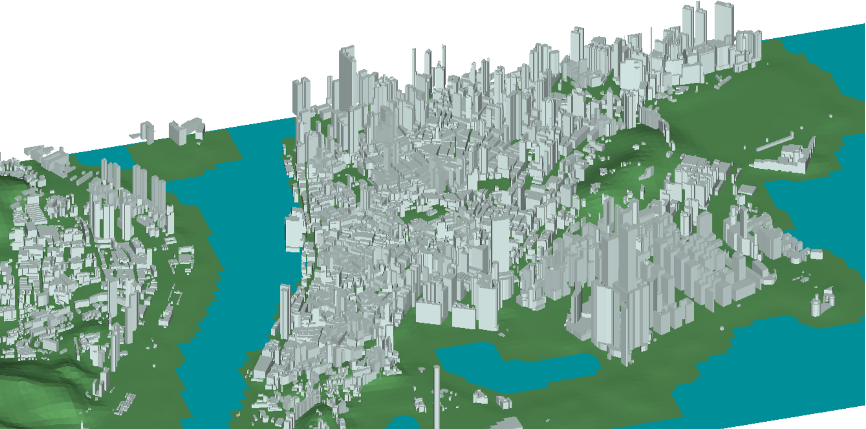
Macao Special Administrative Region, China
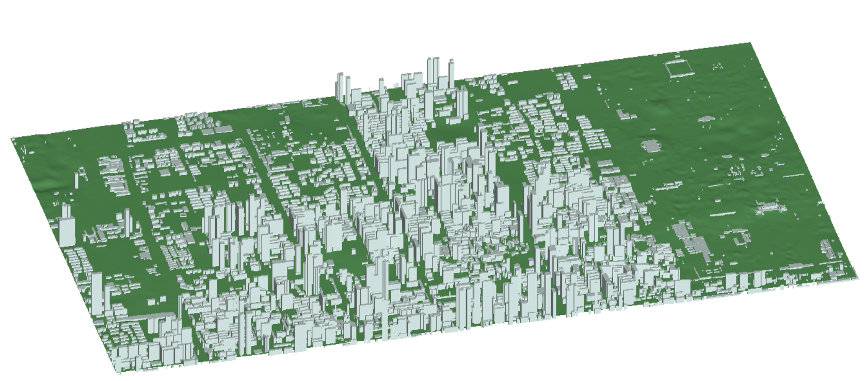 l Weiyang District, Xi'an City, China